
http://dlvr.it/T43WNt


Hi, welcome to General Measure’s channel. In this video, we are going to demonstrate the M04 calibration process.
Weighing Controller M04 stainless steel version is a multi-software functional weighing instrument with packing, bulking(continuous weighing), and liquid filling applications. The full stainless steel out-case is robust and durable.
M04 Front Panel
Before the calibration process, I will briefly go through the front panel of M04.
There are mainly three parts:
Display area: displays weighing data, status, and formula information.
Numeric keys: for data input and shortcut parameter selection.
Function keys:
【ZERO1】for data zeroing.
【ZERO2】in the totalization interface, it can clear all formulas and user totalization.
【M】Menu key to enter the setup parameter menu.
【ESC】Exit key to exit the current page or return to the previous page.
【ENTER】to confirm the operation. On the main page is the shortcut key for parameter setting. For different parameter setups, you can press the corresponding numeric keys.
Now let's begin calibration of M04.
There are two calibration methods for M04: weight calibration and material calibration.
Weight Calibration
Weight calibration has four steps
3. Zero calibration and weight calibration
4. Verify the calibration linearity
Let’s start operating.
Firstly, power on M04, the default login user is the operator. You can press the【0】key to switch the user. The initial login password is 000000. Then press the【M】to enter the parameter menu. The calibration can be found in the left column. Press the 【ENTER】to key in the password, and you will enter the page of the calibration scale.
Set Parameters
Then we set the unit, decimal point, division value, weight range, and other parameters, which are set according to the application. The setting values in this video are only for demonstration purposes.
Press【ENTER】to set the unit, there are g, kg, t, and lb can be used.
You can press the direction keys to switch. Here, we set the unit as g, press【ENTER】to confirm.
Get to the decimal point setting page. There are options as 0, 1, 2, 3, 4. We set the decimal point to 0. Press the【ENTER】confirm
Setting the minimum division value, we have 6 options, respectively, 1, 2, 5, 10, 20, and 50. We set the minimum division value of 1 here.
Then, set the weight range. Generally, we set it as the maximum weight of the load cell. According to the scale we use, we set the range to 10000, and press【ENTER】to confirm.
Zero Calibration and Weight Calibration
Enter the zero calibration, and make sure that there is no object on the scale. After【stable】sign outputs, press the【ENTER】to get the voltage at zero point. The upper area displays the weight that is 0. The lower area displays the voltage at zero point.
Put 200g weights on the scale. After the scale is stable, enter the weight calibration interface and input 200. The weight calibration is completed.
Verify Calibration Linearity
The current weight is 200g on the scale. Put on another 200g weight, the M04 shows 400g. Remove all weights, it displays 0g, which conforms to reality. The verification is finished, and the calibration is successful.
Material Calibration
If without weights or inconvenient to use weights on site, we can also carry out material calibration. The material calibration is only applicable to the hopper mode for M04.
Step 1: Make sure that the scale is empty, after【stable】sign outputs, click the digital button【1】to start calibration.
Step 2: Click【2】to open the filling gate. So you can put materials on the scale, click【2】again to close the filling gate. Click【3】to open the discharging gate, and the materials will flow out. Then click【3】to close the discharging gate.
The third step: weigh the test materials by a standard scale and record the data. Then press【M】to input the weight value recorded, and press【ENTER】to confirm.
We use 200g of weights for verification. You can see the weight data is correct. The material calibration is completed.
We will continue to produce videos for products and operations. Subscribe to General Measure's channel. See you in the next video!
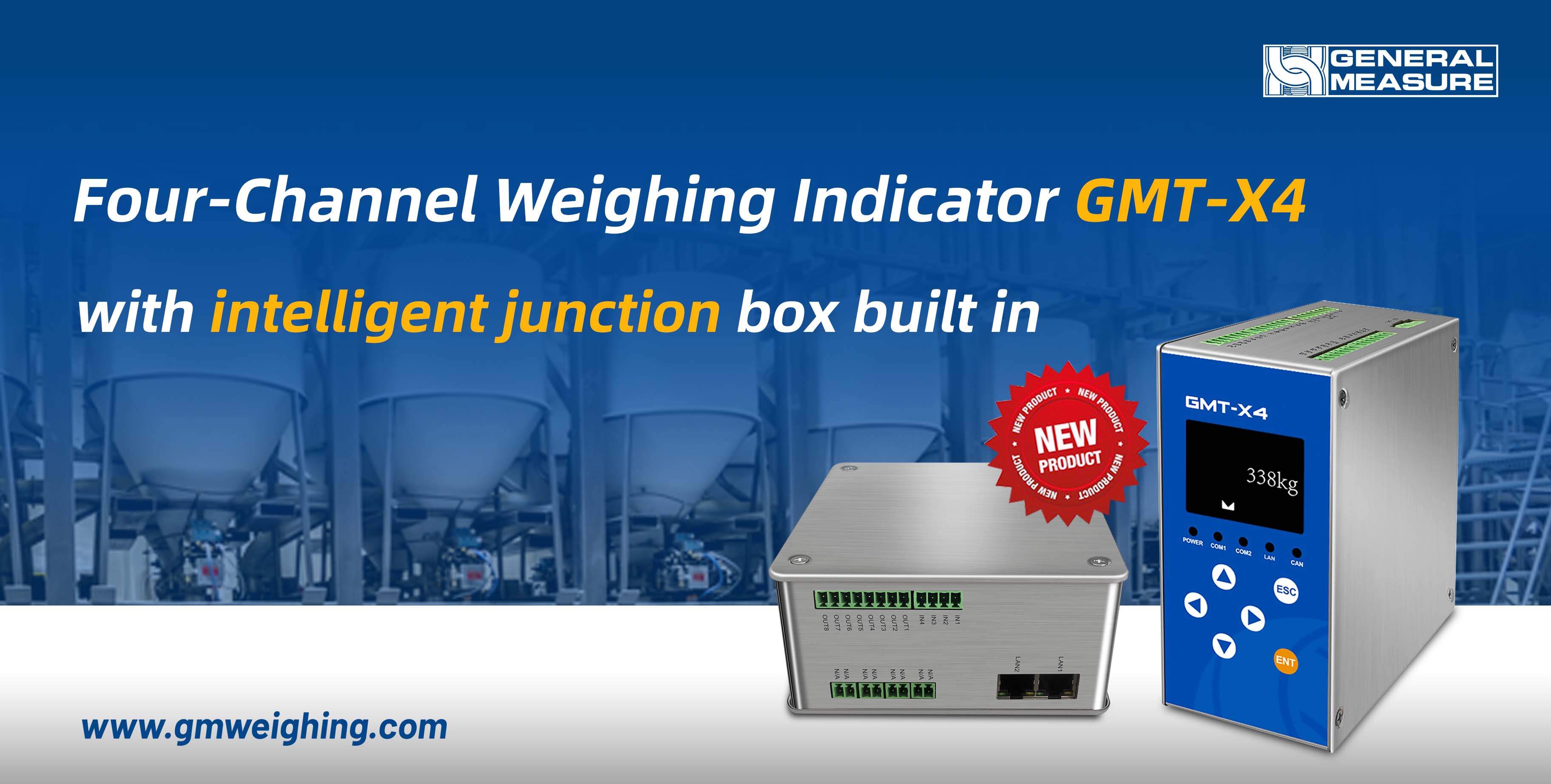 |
Weighing Indicator GMT-X4 by General Measure is a DIN rail-mounted instrument that has two modes: one is with four individual AD working separately; the other one is a four-channel combination mode, that is, a weighing indicator with an intelligent junction box built in can easily monitor the defaulted load cell.
The main display of GMT-X4 combination mode shows the total weight up to 6 digits. It also has a four-channel weights display and a simultaneous millivolt display. If there is one channel of load cell failure, the main display would have the error notice. Enter the inner page to check the details; GMT-X4 will identify which channel is disconnected, and which is convenient for troubleshooting.
GMT-X4 combination mode also has various communication options to choose from: Modbus TCP/IP, Ethernet IP, Profinet, Ethercat, CCLink IE, CAN open, and one analog output. With competitive competency, GMT-X4 can fulfill your requests in many weighing applications, like silo/tank weighing, batching, liquid filling, and so on.
Apply one free sample unit for testing; more features await you to discover.

After the calibration, we need to select the working mode of the instrument. Firstly, we enter the menu. This page includes the calibration, weighing parameters, I/O setting, system maintenance, and other items. In the system maintenance, we can enter scale attributes where we choose the scale’s mode. Here we select the hopper mode. Other parameters remain to the default values. Return to the previous menu, 【peripheral switch】 also can be found in the system maintenance. We can connect to the peripherals we want to use. Then for the I/O setting, we return to the main menu. The system has already set the I/O corresponding to the chosen scale. Normally we use inputs as start, pause, slow stop, and clamp bag; outputs as running, stop, fast feeding, medium feeding, slow feeding, clamp bag, fixed value, finish weighing, zero zone, etc. In general, the I/O set by the system is enough to use. But if we want to use other inputs or outputs, they can also be changed. Back to the main page, we can set the formula parameters. GM9907 has 20 formulas that meet the application needs of packing different materials. Enter recipe 1, we set the target value of 3.50kg, fast feeding as 1.50kg, medium feeding as 1.00kg, dropout value as 0.10kg, zero value as 0.02kg, and prohibition of time as default value. These parameters can determine the time and opening size of the feeding mechanism. The specific instructions can refer to the user manual. In the process parameters setting, we can set the times of different actions during the operation. Here, we use the default value as well.
Back to the main page, the packing parameters have been set up. We’re going to introduce the functions on the main page, total accumulation, debugging interface, recipe parameters, and peripheral parameters that can be intuitive to see and operate. Here the batch can be set, as well as to view, and delete the total accumulation. On the right side, the recipe parameters can be switched.
Next, we began to simulate the packing process with the hopper mode. Click Start, and wait for the output signal of feeding after the feeding delay. At this time we can fill in the materials. The filling process contains fast feeding, medium feeding, and slow feeding according to the set value. If the weight is over the value of the target value minus the drop value (3.50-0.40), the scale enters the state of the fixed value. Click on the clamp, the scale begins to discharge. When the weight is less than the value of the zero-zone (weight <0.02kg), the discharging is complete. After the discharging delay, output the signal of loosening bag, and the one-pack feeding is completed. On the main page, you can see the accumulation updated. Other specific functional parameters are described in the user manual. Please set parameters according to the needs of applications.
That's all for today's video. We will continue to bring videos of the latest products. Subscribe to General Measure's channel. See you in the next video!
